Backtest Autolog
Draw your trades in TradingView the way you already do. Autolog reads them and puts them in your MTT dashboard with a before and after picture of every trade.
No typing. Entry, stop, target, result, how far it ran and the pictures are read straight from your chart.
6x faster backtesting, without losing any of the quality.
Same trade, same result. By hand you type every field and take every screenshot yourself. With Autolog you draw the trade and click, and it reads the rest from your chart: entry, stop, target, win or loss, how far it ran, and the same before and after pictures every time.
Four clicks for a whole batch, one trade or forty.
Same candles before and after, so your eye learns what your setup really looks like.
A loser goes as fast as a winner, so going through them stops being the part you dread.
Set it up once
You need Google Chrome (Edge and Brave work too) and TradingView open in the browser at tradingview.com. The TradingView desktop app can't run it.
-
Open the Autolog page in the Chrome Web Store and click Add to Chrome.
Open your chart on tradingview.com and reload the page. An Autolog button shows up at the bottom left of the chart. You can drag it anywhere.
Installed it by hand before? Go to
chrome://extensionsand click Remove on the old one, so you only have the store version. That one updates itself.
Google is still reviewing the store version. Until it is approved, use Install by hand. It takes about two minutes.
-
Download Autolog and double-click the file to unzip it. Keep the folder MTT Backtest Autolog somewhere you won't delete it, like Documents.
-
Open the extensions page. Type this in Chrome's address bar and press Enter:
chrome://extensions Turn on Developer mode with the switch at the top right.
Click Load unpacked at the top left and choose the MTT Backtest Autolog folder.
Open your chart on tradingview.com and reload the page. An Autolog button shows up at the bottom left of the chart.
When the store version is out, switch to it: remove this one on chrome://extensions and add the store one. Your trades in the dashboard are not affected.
Every time you backtest
Four steps. The first time, the Autolog panel also shows them.
1Draw your trades
Put a Long Position or Short Position on each trade, right where you entered, on your entry timeframe. Drag the stop and the target to where they were. Nothing moves on the chart while you draw.
2Press Process
Click Autolog, then Process. A countdown covers the chart while it reads your trades and takes the pictures, about half a minute a trade. Let it finish.
Your chart already has a lot of old Position drawings? The first time, click These are old? Skip them and start from now. After that it only takes the trades you draw.
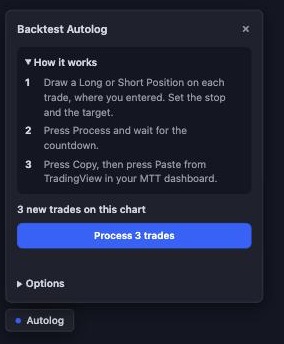
3Copy, then paste in your dashboard
Click Copy. Open your MTT dashboard, go to Backtest and click Paste from TradingView.

4Check and add
Every trade shows up next to its pictures. Answer the quick check on the ones it asks about, pick your setup and click Add. Something looks wrong? Click No, something is off and that trade is left out.
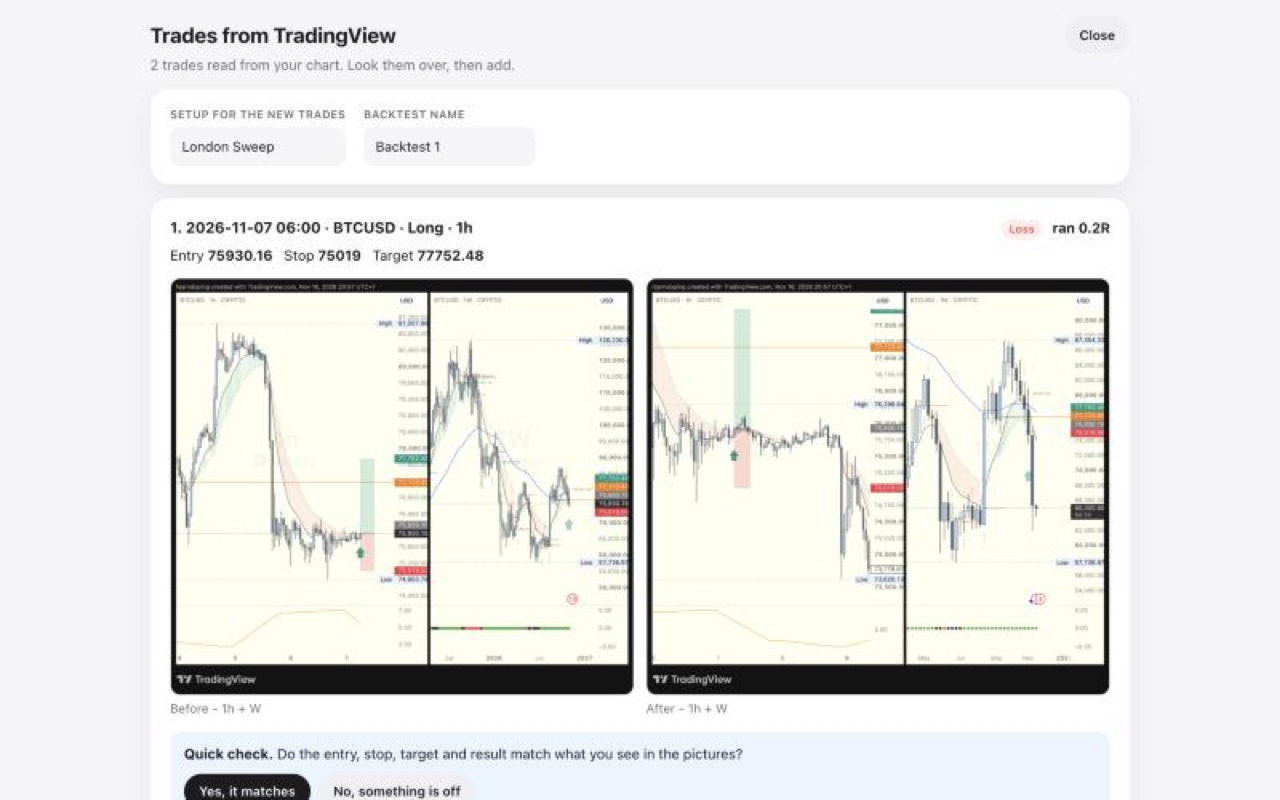
What you get
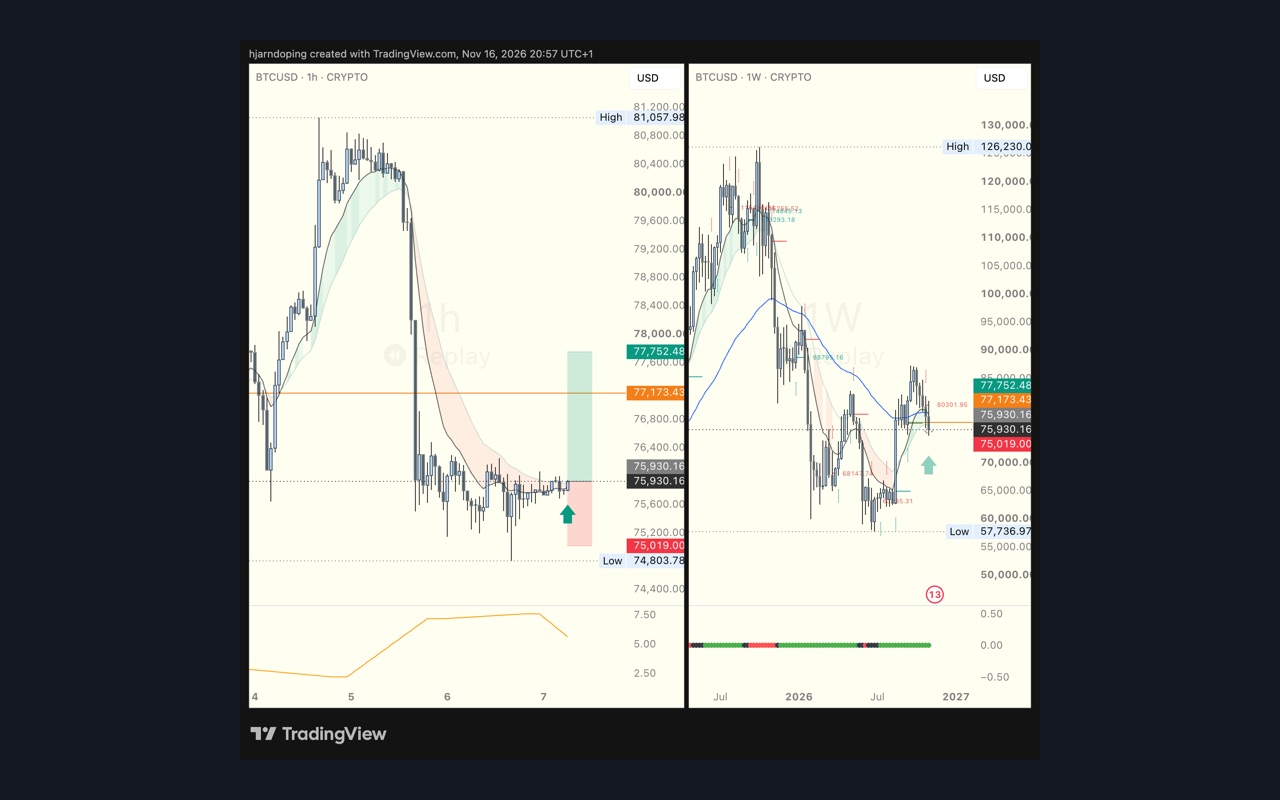
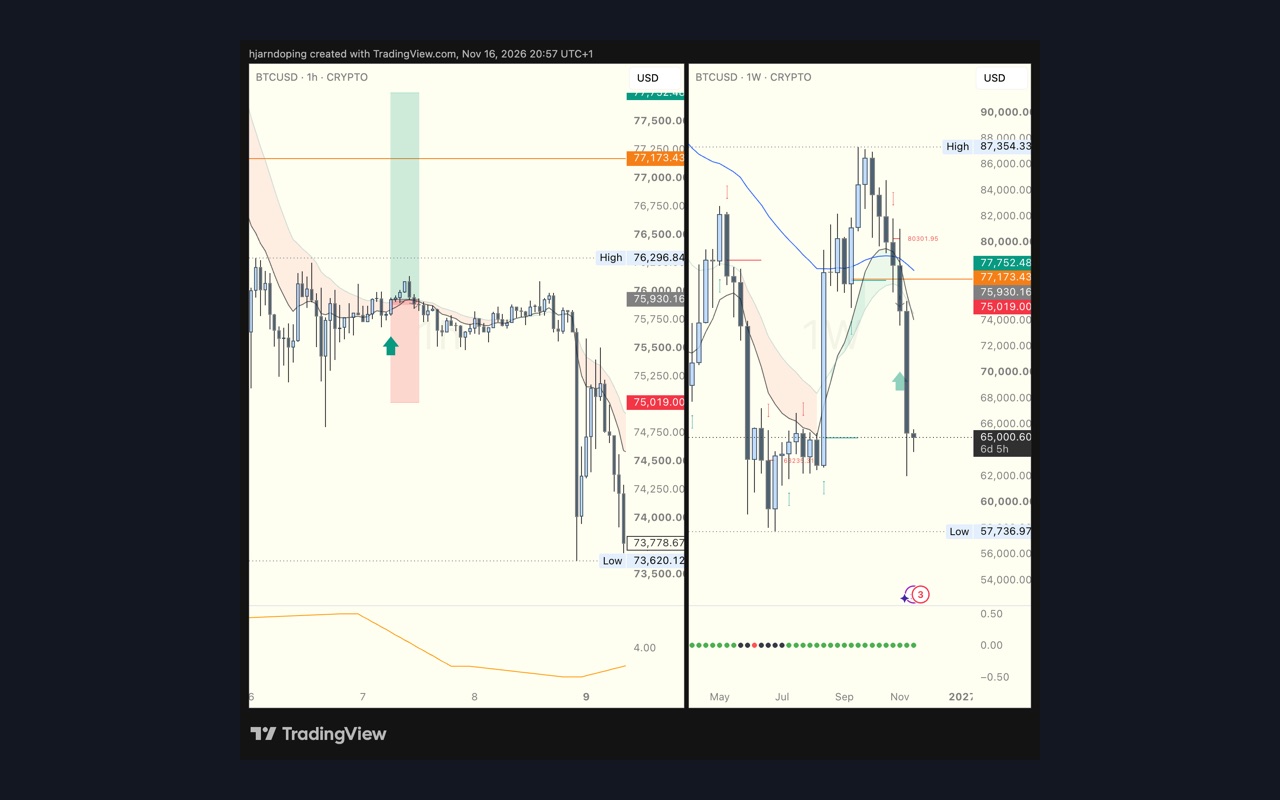
The same picture every time, so your eye learns what your setup looks like. The before picture stops at your entry with empty room after it, like Bar Replay, so you see the trade the way you saw it. The after picture shows the whole trade.
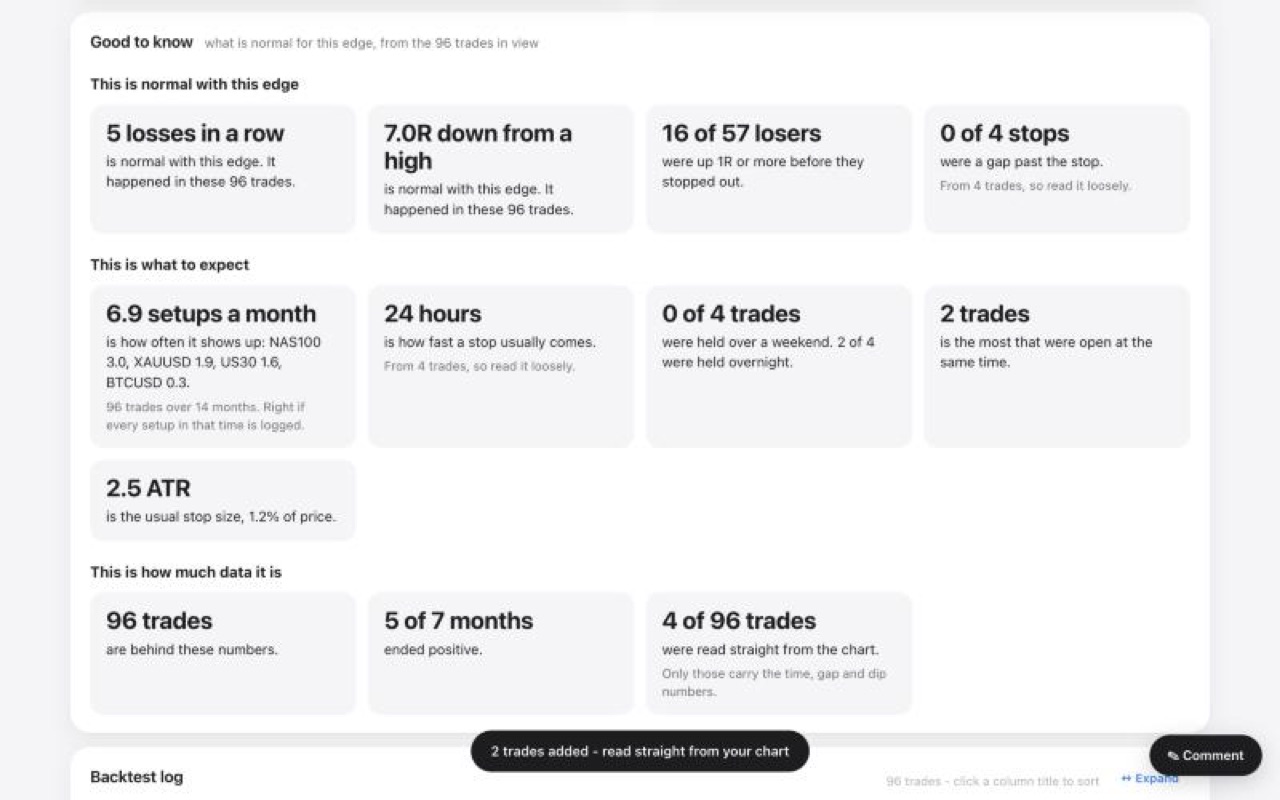
Scroll down in Backtest to Good to know to see what is normal for your edge: how many losses in a row, how far winners go against you first, how long a winner needs, and gaps past the stop.
Good to know
I moved a trade after Process
Autolog notices and reads it again. Paste again and the trade in your dashboard is updated, never doubled.
A trade says "Not ready"
It hasn't hit its stop or target yet, or there are no candles after your entry. Autolog needs the candles after the entry, so it steps out of Bar Replay to read them.
Which timeframes are in the pictures?
You choose under Options in the panel. Entry is the timeframe you drew the trade on. Every timeframe you pick gets one before and one after picture.
The before picture has no empty room after the entry
That room comes from TradingView's Bar Replay, which needs a paid TradingView plan on intraday charts. Without it the picture ends at your entry. Everything else works the same.
There is no Autolog button
Reload the TradingView page. If the button is orange, Autolog couldn't connect to the chart: reload once more, and if it stays orange, tell your coach.
Something got stuck
Reload the TradingView page. Your drawings are always safe. Reset Autolog under Options clears what Autolog remembers, without touching your drawings or your dashboard.